Bluepad32 BLE Companion App
The Bluepad32 BLE Client is a cross-platform Flutter
application for Android, iOS, macOS, Linux, Windows, and
Web Bluetooth. It connects to the Bluepad32 BLE GATT configuration service
(4627C4A4-AC00-46B9-B688-AFC5C1BF7F63).
Use the companion app to monitor connected controllers and update runtime settings over BLE. You do not need to reflash firmware or open a serial console:
- Monitor connected gamepads in real time (controller model, Bluetooth MAC address, Vendor/Product ID, and connection state).
- Disconnect individual controller slots remotely.
- Rename the Bluepad32 device (
1–29UTF-8 bytes) and unlock password-protected boards (1–31UTF-8 bytes). - Toggle BLE controller connections, controller scanning, and virtual child devices (such as DualSense and DualShock 4 touchpad mice).
- Select Xbox, Nintendo Switch, or Custom button presets, or edit
all 28 fields of
uni_gamepad_mappings_tin the Custom Remapping Matrix. - Enforce a Bluetooth MAC allowlist and add or remove allowed controller MAC addresses.
- Clear stored Bluetooth pairing keys or reboot the microcontroller remotely.
1. Enable the BLE Service on Bluepad32
Before you connect with the client app, enable the BLE configuration service on
your Bluepad32 device. Bluepad32 stores the service state (bp.ble.svc_en),
device name (bp.ble.name), and session password (bp.ble.pass) in
non-volatile storage (ESP32 NVS or BTstack TLV).
Open the serial console (idf.py monitor). Run ble_service_enable:
# Enable and advertise the BLE configuration service
ble_service_enable 1

# (Optional) Set a custom advertised device name (1..29 UTF-8 bytes)
ble_service_name "Unijoysticle 2 C64"

# (Optional) Require a session password (1..31 UTF-8 bytes, or 'none' to clear)
ble_service_password "arcade-secret"
Inside a platform callback such as on_init_complete(), call the
uni_bt_service_* functions from bt/uni_bt_service.h:
#include "bt/uni_bt_service.h"

static void my_platform_on_init_complete(void) {
    // Optional: set the advertised BLE service name (max 29 UTF-8 bytes)
    uni_bt_service_set_name("Unijoysticle 2 C64");

    // Optional: protect the BLE service with a password (max 31 UTF-8 bytes)
    // Pass NULL or "" to leave the service open without a password.
    uni_bt_service_set_password("arcade-secret");

    // Enable and advertise the BLE configuration service
    uni_bt_service_set_enabled(true);
}
From an external FreeRTOS task or Arduino loop(), call the thread-safe
wrapper from bt/uni_bt.h:
#include "bt/uni_bt.h"

// Schedule BLE service activation on the BTstack run-loop thread
uni_bt_enable_service_safe(true);
2. Install the Bluepad32 BLE Client
Download a prebuilt release binary from the Bluepad32 BLE Client Releases page, or build the Flutter app from source:
| Platform | Release Asset | Requirements |
|---|---|---|
| Android | bluepad32-android.apk |
Android 5.0+ (API 21+) |
| iOS | bluepad32-ios.ipa |
iOS 12+ |
| macOS | bluepad32-macos-universal.zip |
macOS 10.14+ (Universal x86_64 + arm64, signed and notarized) |
| Linux (x64 / ARM64) | bluepad32-linux-amd64.tar.gz / bluepad32-linux-arm64.tar.gz |
Linux desktop with bluez |
| Windows (x64) | bluepad32-windows-amd64.zip |
Windows 10+ (x64 via WinRT BLE) |
| Web | bluepad32-web.tar.gz |
Chrome or Edge with Web Bluetooth support |
To run from source with the Flutter SDK:
git clone https://github.com/ricardoquesada/bluepad32-ble-client.git
cd bluepad32-ble-client/src
flutter pub get

# Run on macOS, Linux, Windows, Chrome, or a connected mobile device
flutter run -d macos
3. How to Use the Client
Step 1: Discover and Connect to a Bluepad32 Device
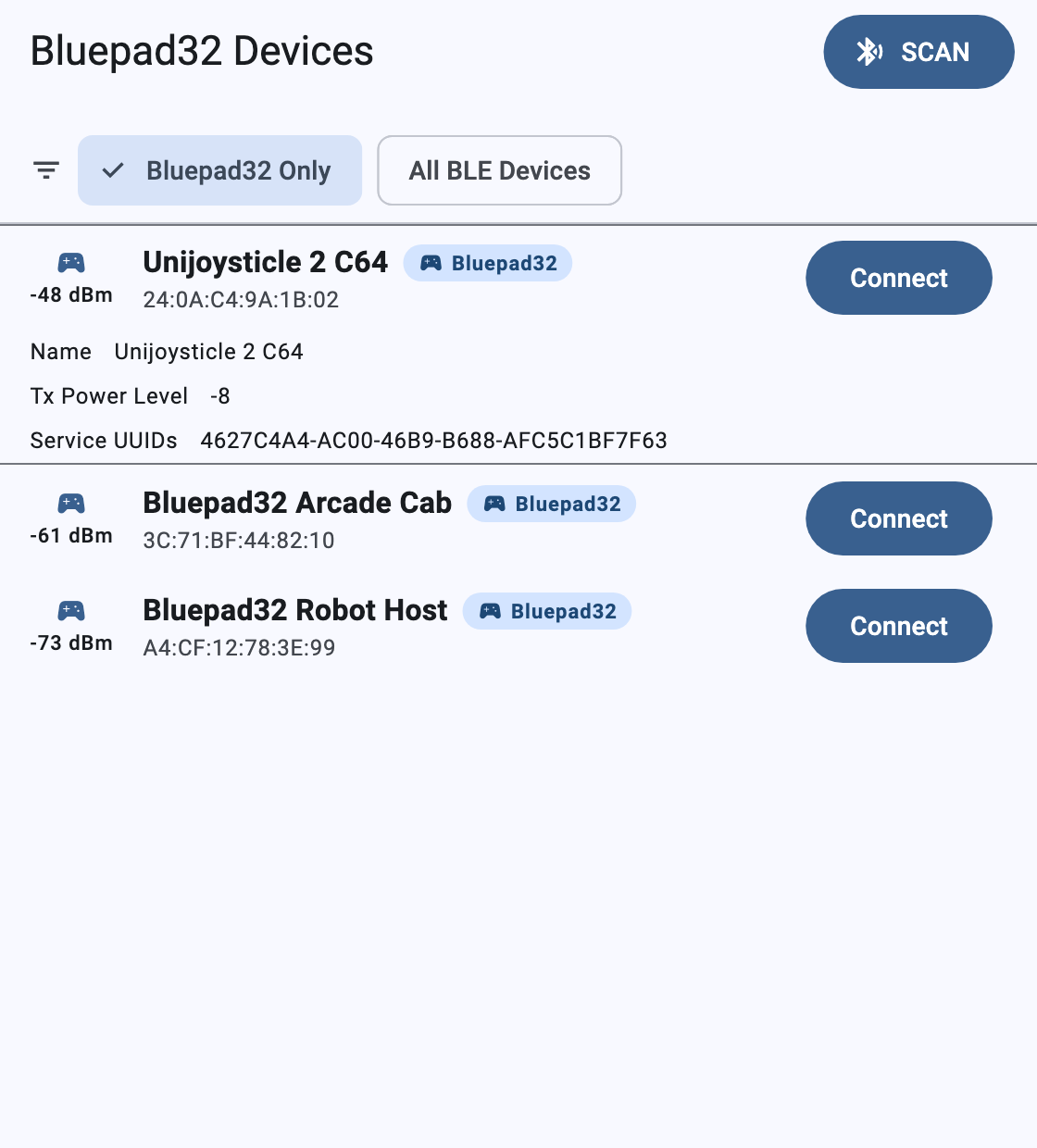
- Open the Bluepad32 BLE Client. Turn on Bluetooth on your computer or phone.
- Select the Bluepad32 Only filter chip. Tap SCAN. The client filters
BLE advertisements by the Bluepad32 service UUID
(
4627C4A4-AC00-46B9-B688-AFC5C1BF7F63) and sorts boards by RSSI. - Tap a device row to expand its advertisement metadata (local name, TX power level, and service UUIDs).
- Tap Connect to open the device dashboard.
Step 2: Unlock a Password-Protected Session (If Enabled)
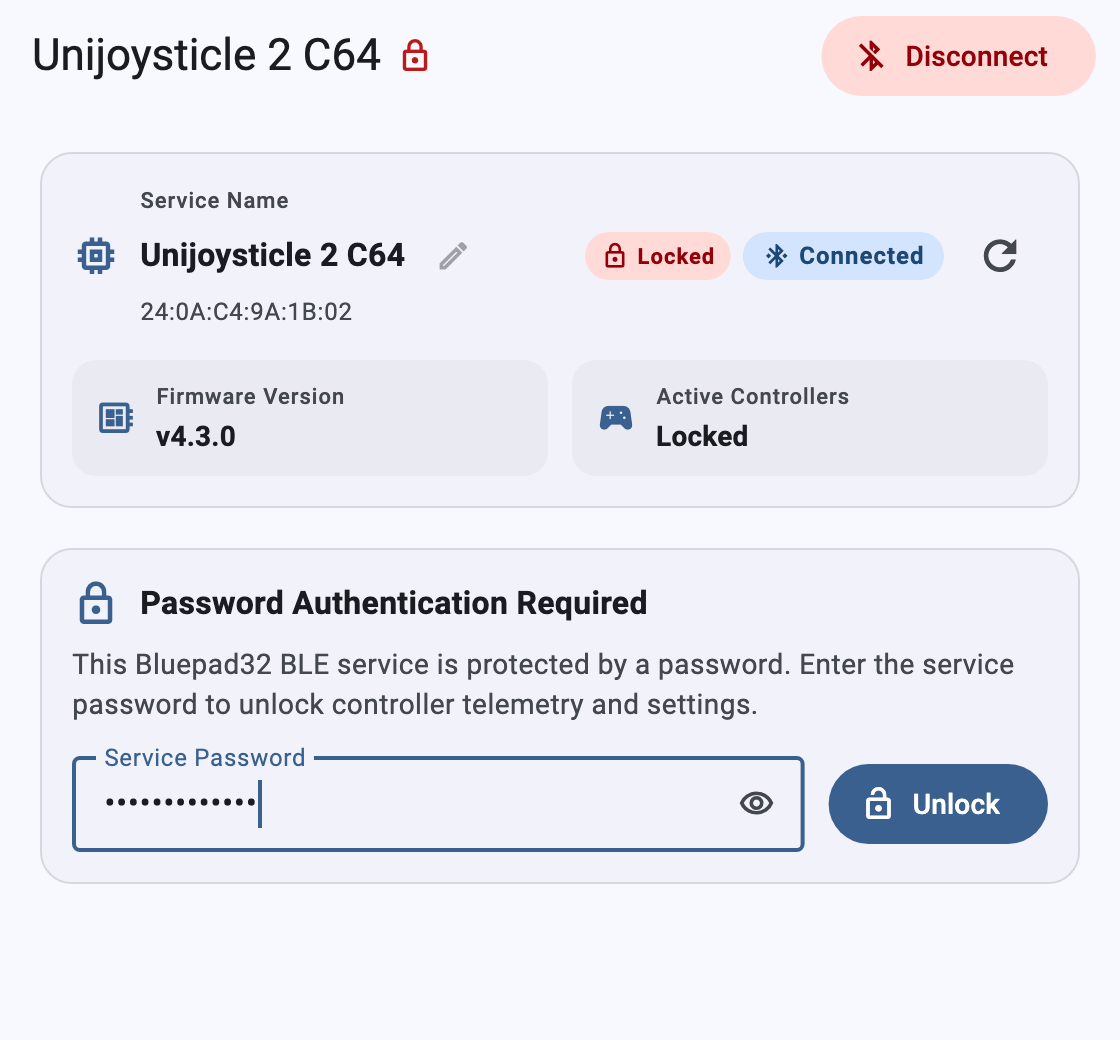
If the Bluepad32 board requires a session password (bp.ble.pass /
characteristic AC0E), the dashboard shows a Locked badge. The firmware
blocks protected GATT reads, writes, and controller notifications until you
authenticate:
- Enter the service password (
1–31UTF-8 bytes) in the Service Password field. - Tap Unlock to authenticate the BLE connection. The badge changes to Authenticated, and the client loads all controller telemetry and settings.
Step 3: Monitor Controllers and Configure Radio Settings
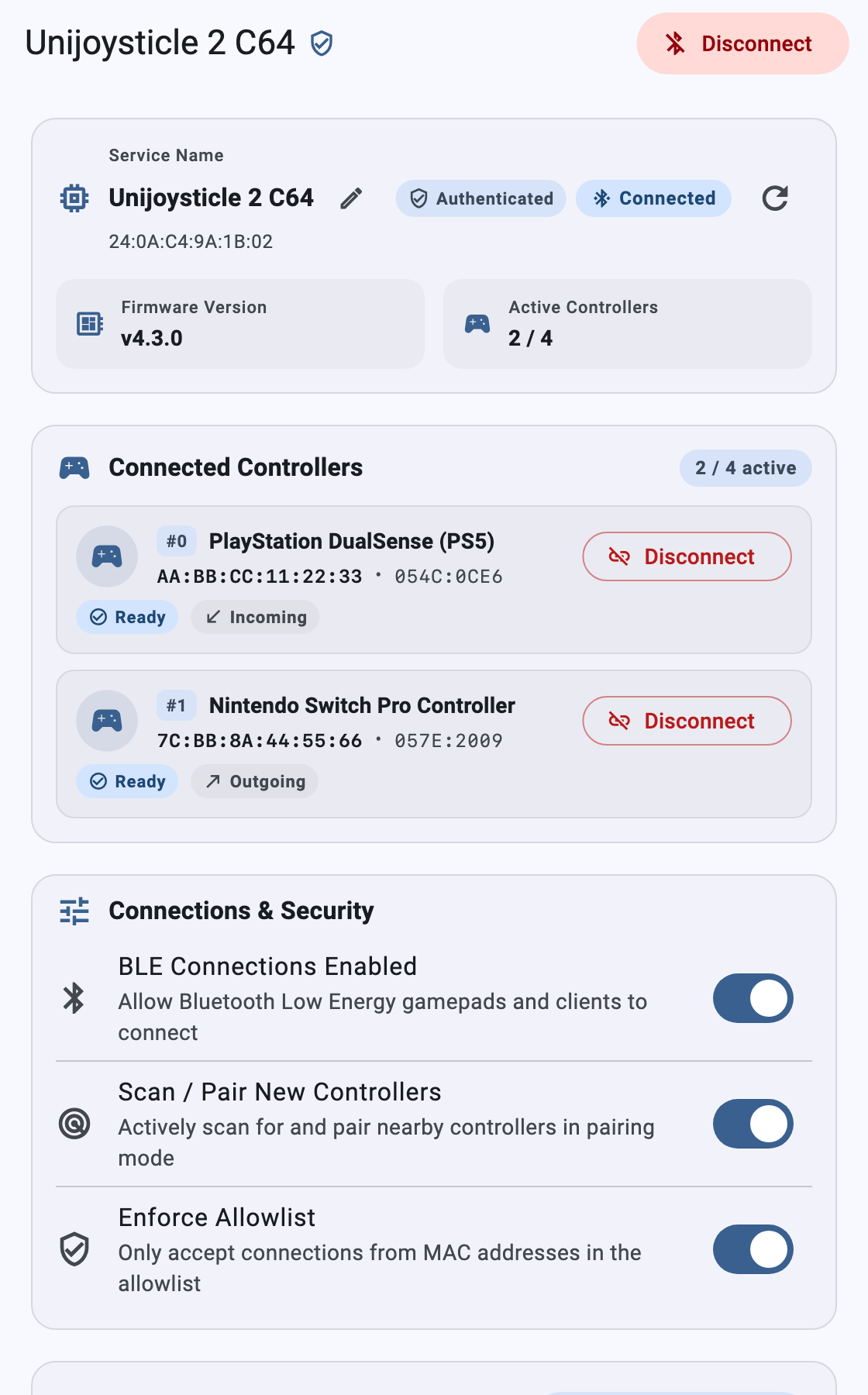
- System Info Card (
AC01,AC02,AC0D,AC0E):- Shows the Service Name, hardware MAC address, authentication state,
connection badge, Firmware Version, and Active Controllers count
(
2 / 4). - Tap the pencil icon next to the service name to rename the Bluepad32
peripheral (
1–29UTF-8 bytes). The firmware immediately updates the primary advertising packet (ADV_IND) and scan response packet (SCAN_RSP). - Tap the refresh icon to re-read all GATT characteristics from the board.
- Shows the Service Name, hardware MAC address, authentication state,
connection badge, Firmware Version, and Active Controllers count
(
- Connected Controllers Card (
AC05,AC0A):- Streams real-time controller updates over ATT notifications. Each occupied
slot shows its index (
#0–#3), model name, Bluetooth MAC address,VID:PID, state (Ready), and direction (Incoming or Outgoing). - Tap Disconnect on any slot to disconnect that controller immediately.
- Streams real-time controller updates over ATT notifications. Each occupied
slot shows its index (
- Connections & Security Card (
AC03,AC04,AC07,AC10):- BLE Connections Enabled (
AC03): Enables or disables Bluetooth Low Energy controller connections on the Bluepad32 host. - Scan / Pair New Controllers (
AC04): Starts or stops Bluetooth inquiry and scanning for controllers in pairing mode. - Enforce Allowlist (
AC07): Restricts controller connections to MAC addresses stored in the allowlist. - Allowed HID Device Types (
AC10): Filters which Bluetooth HID device categories (Gamepads, Mice, Keyboards) are accepted during discovery.
- BLE Connections Enabled (
Step 4: Manage the Bluetooth Allowlist, Mappings, and System Maintenance
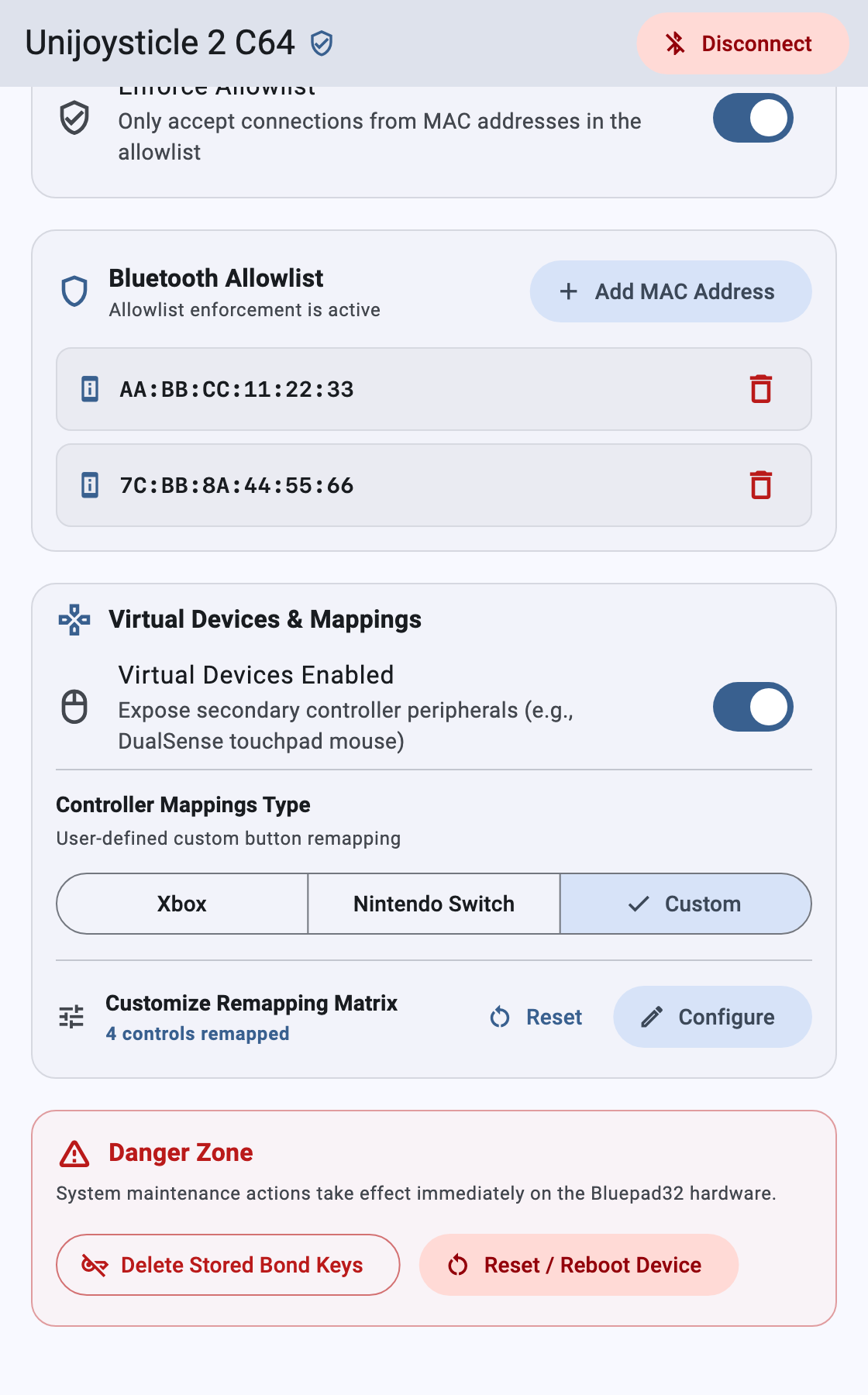
- Bluetooth Allowlist Card (
AC08):- Tap + Add MAC Address to add a controller MAC address in
AA:BB:CC:DD:EE:FFformat. - Tap the trash icon next to any listed MAC address to remove it from non-volatile storage.
- Tap + Add MAC Address to add a controller MAC address in
- Virtual Devices & Mappings Card (
AC06,AC09,AC0F):- Virtual Devices Enabled (
AC09): Toggles composite virtual child devices (such as the touchpad mouse on DualSense and DualShock 4 controllers). - Controller Mappings Type (
AC06): Selects the Xbox (A/B/X/Y), Nintendo Switch (B/A/Y/X), or Custom remapping layout. - Customize Remapping Matrix (
AC0F): Shows how many controls differ from the default Xbox layout. Tap Reset to restore default Xbox mappings, or tap Configure to open the 28-field remapping editor.
- Virtual Devices Enabled (
- Danger Zone Card (
AC0B,AC0C):Delete Stored Bond Keys(AC0B): Opens a confirmation dialog and clears all saved Classic BT and BLE pairing keys from the board.Reset / Reboot Device(AC0C): Opens a confirmation dialog and reboots the Bluepad32 microcontroller.
Step 5: Customize the 28-Field Remapping Matrix
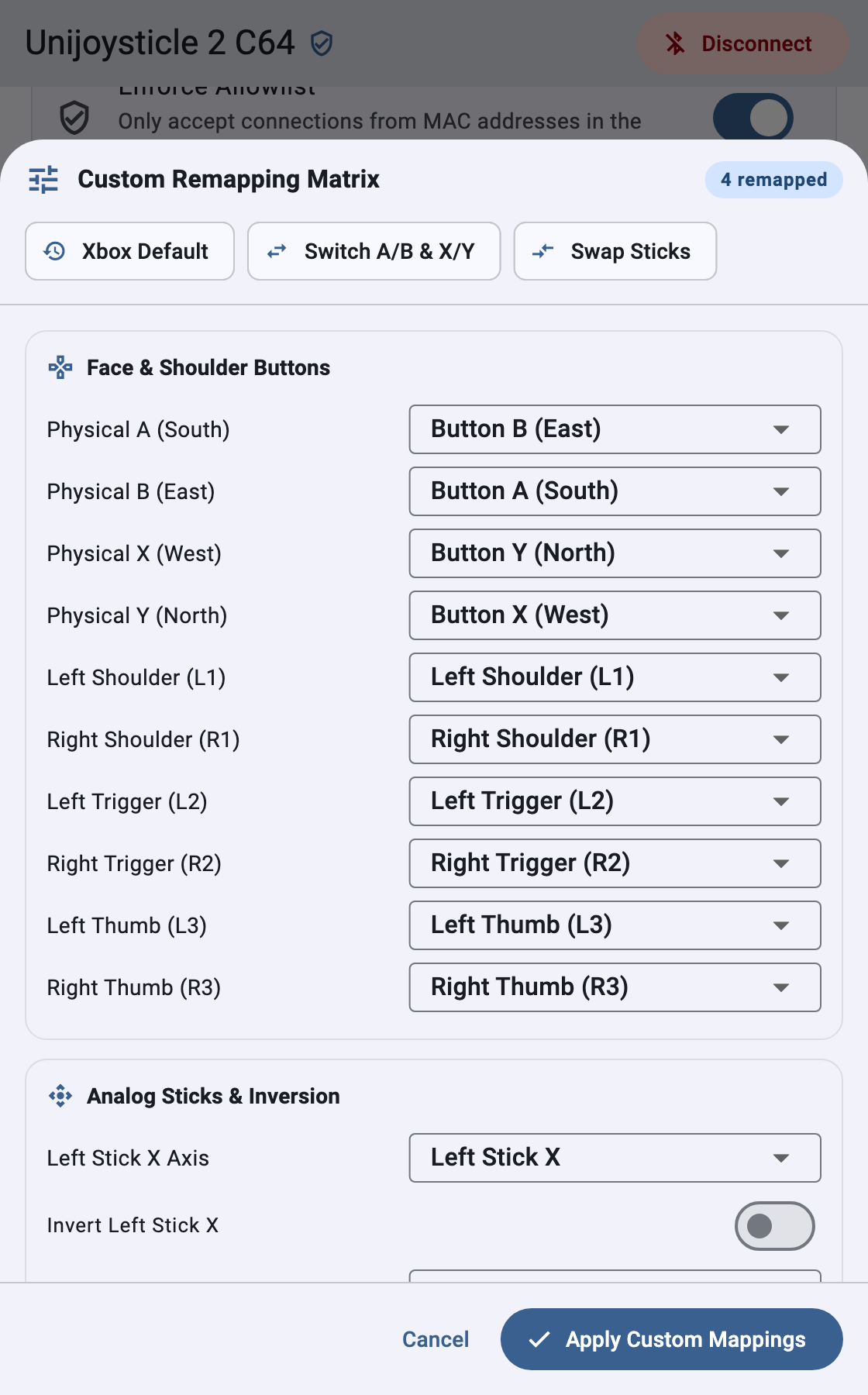
Tap Configure in the Virtual Devices & Mappings card to open the Custom Remapping Matrix sheet:
- Quick Presets: Tap Xbox Default, Switch A/B & X/Y, or Swap Sticks to load a preset layout.
- Fine-Grained Control Remapping: Select custom targets for any of the 28
fields in
uni_gamepad_mappings_tacross five categories:- Face & Shoulder Buttons:
A,B,X,Y,L1,R1,L2,R2,L3, andR3(10 fields). - Analog Sticks & Inversion: Left and Right Stick
XandYaxis routing (4 fields) and per-axis inversion switches (4 fields). - D-Pad Directions:
Up,Down,Left, andRight(4 fields). - Triggers / Pedals:
Brake (L2)andThrottle (R2)analog routing (2 fields). - System & Misc Buttons:
Select,Start,System, andCapture(4 fields).
- Face & Shoulder Buttons:
- Tap Apply Custom Mappings to check and send the 28-byte matrix to the
board over characteristic
AC0F. This action also activates the Custom mapping type onAC06.
4. BLE GATT Service Reference (uni_bt_service.c)
The Bluepad32 BLE configuration server (src/components/bluepad32/bt/uni_bt_service.c)
exposes primary service 4627C4A4-AC00-46B9-B688-AFC5C1BF7F63 with these
characteristics:
| UUID Suffix | Characteristic | Properties | Wire Format | Auth Protected (AC0E) |
|---|---|---|---|---|
AC01 |
Firmware Version | READ |
UTF-8 string (for example, "v4.3.0") |
Public |
AC02 |
Max Controller Slots | READ |
uint8 (CONFIG_BLUEPAD32_MAX_DEVICES, default 4) |
Protected |
AC03 |
BLE Connections Enabled | READ \| WRITE |
uint8 (0 = disabled, 1 = enabled) |
Protected |
AC04 |
Scan / Pair Controllers | READ \| WRITE |
uint8 (0 = stopped, 1 = scanning) |
Protected |
AC05 |
Connected Controllers | READ \| NOTIFY |
Array of 16-byte packed compact_device_t structs (64B for 4 slots) |
Protected (incl. CCCD) |
AC06 |
Controller Mappings Type | READ \| WRITE |
uint8 (0 = Xbox, 1 = Switch, 2 = Custom) or 29B atomic [2, ...28B...] |
Protected |
AC07 |
Allowlist Enabled | READ \| WRITE |
uint8 (0 = disabled, 1 = enforced) |
Protected |
AC08 |
Allowlist MAC Addresses | READ \| WRITE |
Read: packed 6-byte bd_addr_t array. Write: [op, 6B_MAC] (op: 0=remove, 1=add) |
Protected |
AC09 |
Virtual Devices Enabled | READ \| WRITE |
uint8 (0 = disabled, 1 = enabled) |
Protected |
AC0A |
Disconnect Controller | WRITE |
uint8 slot index (0 .. max_devices - 1) |
Protected |
AC0B |
Delete Stored Bond Keys |
WRITE |
uint8 (1 = clear all stored Bluetooth keys) |
Protected |
AC0C |
Reset / Reboot Device | WRITE |
uint8 (1 = reboot microcontroller) |
Protected |
AC0D |
BLE Service Name | READ \| WRITE |
UTF-8 string (1..29 bytes, updates ADV_IND + SCAN_RSP + 0x2A00) |
Public read / Protected write |
AC0E |
Session Password Auth | READ \| WRITE |
Read: uint8 (0 = open, 1 = required, 2 = authenticated). Write: UTF-8 password (1..31 bytes) |
Public |
AC0F |
Custom Remapping Matrix | READ \| WRITE |
28-byte packed uni_gamepad_mappings_t struct |
Protected |
AC10 |
Allowed HID Device Types | READ \| WRITE |
uint8 bitmask (0x01 = Gamepad, 0x02 = Mouse, 0x04 = Keyboard, 0x07 = All) |
Protected |